1.3 Data storage and file compression
Digital data takes space. This topic explains how that space is measured, how to calculate the size of bitmap images and sound files, why files are compressed, and how lossy and lossless compression reduce file size in different ways.
What you need to understand
By the end of Topic 1.3 you should be able to use binary data-storage units correctly, calculate the uncompressed size of bitmap images and sampled sound, explain why compression is needed, distinguish lossy from lossless compression, describe common lossy formats, and explain how run-length encoding compresses repeated data without losing the original information.
Measurement of data storage
All digital data is ultimately stored as binary. The smallest binary unit is a bit, which can have the value 0 or 1. The word bit comes from binary digit.
Bit
One binary digit: either 0 or 1.
Nibble
4 bits. A nibble is half a byte.
Byte
8 bits. Larger storage quantities are built from bytes.
Denary storage units and binary storage units
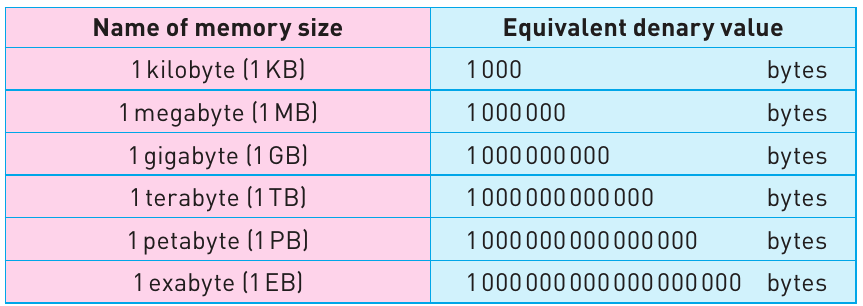
Two naming systems are commonly seen. The SI-style units use powers of 1000, while the IEC binary units use powers of 1024. The course book shows both so that you can recognise the difference.
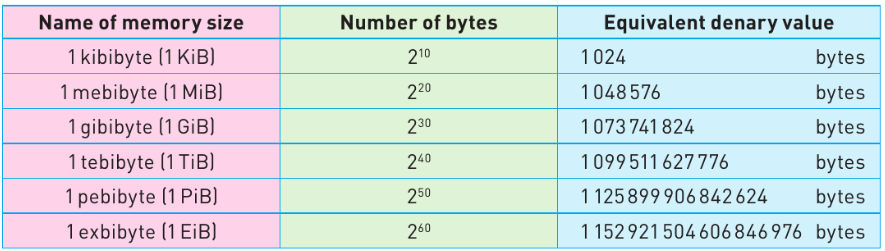
| IEC unit | Symbol | Bytes | Power of 2 |
|---|---|---|---|
| kibibyte | KiB | 1,024 | 210 |
| mebibyte | MiB | 1,048,576 | 220 |
| gibibyte | GiB | 1,073,741,824 | 230 |
| tebibyte | TiB | 1,099,511,627,776 | 240 |
| pebibyte | PiB | 1,125,899,906,842,624 | 250 |
| exbibyte | EiB | 1,152,921,504,606,846,976 | 260 |
Worked conversion
Convert 8 MiB into bytes.
Going from MiB to bytes requires two ×1024 steps: MiB → KiB → bytes.
Calculation of file size
The course focuses on calculating the uncompressed size of two kinds of digital data: bitmap images and sampled sound. Always identify what each part of the formula represents and keep track of whether your answer is in bits or bytes.
Bitmap image file size
If the resolution is written as width × height, first multiply those two numbers to find the total number of pixels.
Example: 2048 × 2048 image at 16-bit colour depth
- Total pixels = 2048 × 2048 = 4,194,304 pixels.
- Bits = 4,194,304 × 16 = 67,108,864 bits.
- Bytes = 67,108,864 ÷ 8 = 8,388,608 bytes.
- MiB = 8,388,608 ÷ (1024 × 1024) = 8 MiB.
How many images fit in a storage device?
First calculate the size of one image in bytes. Then convert the storage capacity to the same unit and divide:
Only whole files can be stored, so if a calculation gives a decimal result, use the number of complete files that fit.
Sound file size
For a stereo recording, there are two channels:
Example: one hour of CD-style stereo audio
Sample rate = 44,100 Hz, sample resolution = 16 bits, duration = 60 minutes = 3,600 seconds, channels = 2.
- One channel: 44,100 × 16 × 3,600 = 2,540,160,000 bits.
- Stereo: 2,540,160,000 × 2 = 5,080,320,000 bits.
- Convert to bytes: 5,080,320,000 ÷ 8 = 635,040,000 bytes.
- Convert to MiB: 635,040,000 ÷ 1,048,576 ≈ 605 MiB.
| What increases? | Effect on uncompressed file size | Reason |
|---|---|---|
| Image resolution | Increases | More pixels must be stored. |
| Colour depth | Increases | More bits are stored for each pixel. |
| Sound sample rate | Increases | More samples are stored each second. |
| Sound sample resolution | Increases | More bits are stored for each sample. |
| Sound duration | Increases | More seconds of samples are stored. |
| Number of sound channels | Increases | Each channel stores its own sample data. |
Data compression
Image, sound and video files can contain a large amount of data. Compression reduces the number of bits needed to represent a file.
Why compress files?
Save storage space
Smaller files use less space on storage devices such as hard disk drives and solid state drives.
Faster streaming
Reducing file size can reduce the time needed to stream music or video.
Faster transfer
Smaller files can take less time to upload, download or transfer across a network.
Use less bandwidth
Bandwidth is the maximum rate at which data can be transferred across a network, measured in bits per second. A compressed file contains fewer bits to send.
Reduce cost
Less data can mean lower storage costs, for example in cloud storage, and can reduce charges where an internet service is priced according to downloaded data.
Lossy and lossless file compression
Compression methods are divided into two main groups depending on whether the original data can be recovered exactly.
Lossy compression
Some data is permanently removed. The original file cannot be reconstructed exactly after compression. This usually creates a smaller file than lossless compression.
Lossless compression
No original information is discarded. The complete original file can be reconstructed from the compressed version.
Lossy compression
A lossy algorithm decides which information can be removed while still leaving an acceptable result for its intended use. Because information is discarded, there is some loss of detail compared with the original.
- For an image, a lossy method may reduce the resolution and/or colour depth.
- For sound, a lossy method may reduce the sample rate and/or sample resolution.
MP3 and MP4
MP3 is a lossy format used for music. The course book explains that it can reduce a normal music file by about 90%. Its compression can remove sounds that are outside the human hearing range and can also remove a quieter sound when a louder sound played at the same time masks it. The book refers to this as perceptual music shaping.
MP4 is also a lossy format, but it can store multimedia rather than only sound. Music, video, photographs and animation can be included in MP4 files while keeping a size suitable for storage or streaming.
JPEG
JPEG is a lossy compression method used for bitmap images. Once information has been discarded during JPEG compression, the original raw bitmap cannot be reconstructed exactly.
The course book describes two ideas used when reducing JPEG image data:
- Human eyes are less sensitive to small differences in colour shade than to differences in brightness.
- By separating colour information from brightness information, image data can be processed in small blocks such as 8 × 8 pixels, allowing some information to be removed without a major visible loss of quality.
Lossless compression and Run-Length Encoding (RLE)
Run-length encoding (RLE) is a lossless technique that works by replacing a sequence of adjacent identical values with a shorter description of that run.
For text, the value can be an ASCII code. For an image, it can be a colour value. RLE works best when there are long runs of repeated data. It is less effective when values change frequently.
RLE text example
For the string aaaaabbbbccddddd:
- five a characters → count 5 + ASCII code 97
- four b characters → count 4 + ASCII code 98
- two c characters → count 2 + ASCII code 99
- five d characters → count 5 + ASCII code 100
If each original character takes one byte, the 16-byte source string is represented by eight one-byte values in this simplified example.
Flags in RLE
If the data changes very frequently, writing a count and value for every single item may give little or no saving. The book shows a refinement using a flag: the flag tells the decoder that the following values describe a repeated run. In its example, 255 is used as the flag value. Values that are not preceded by the flag can be treated directly. This avoids wasting extra run-count data where there is no useful repetition.
RLE with images
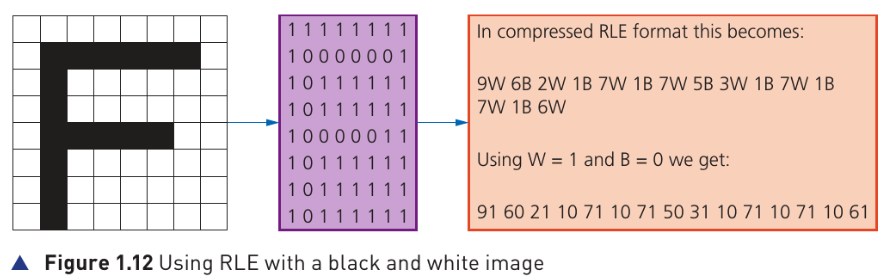
In the book's 8 × 8 black-and-white example, the original grid needs 64 bytes when each square takes one byte. The compressed RLE representation contains 30 stored values, so it needs 30 bytes in the simplified example.
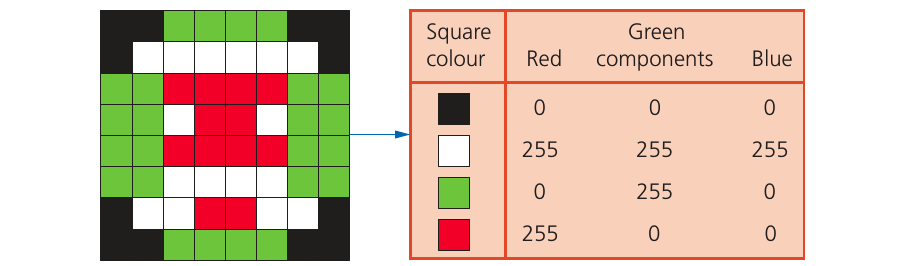
For the book's coloured 8 × 8 image, each square needs three bytes to store its RGB values, so the uncompressed data requires 8 × 8 × 3 = 192 bytes. The example's RLE data uses 92 values, giving a simplified compressed size of 92 bytes — about a 52% reduction.
| Feature | Lossy | Lossless |
|---|---|---|
| Can the exact original be reconstructed? | No | Yes |
| Data discarded? | Yes | No |
| Typical examples in this topic | MP3, MP4, JPEG | RLE |
| Best suited to | Media where a controlled loss of detail is acceptable | Data where the original must be recovered exactly |
| Typical file size | Often smaller | Usually larger than an equivalent lossy version |