3.3 Data storage
This topic explains the different kinds of computer memory and storage, how RAM and ROM differ, how magnetic, solid-state and optical storage work, and how virtual memory and cloud storage extend the ways data can be kept and accessed.
What you need to understand
You should be able to distinguish primary memory from secondary/off-line storage, compare RAM and ROM and DRAM and SRAM, explain HDD/SSD/optical technologies, describe virtual memory and disk thrashing, and evaluate cloud storage including public, private and hybrid clouds.
Primary memory
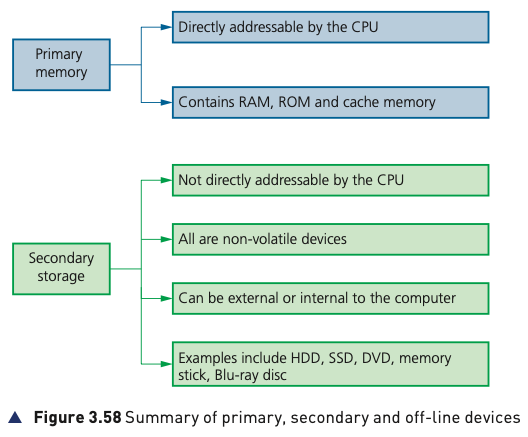
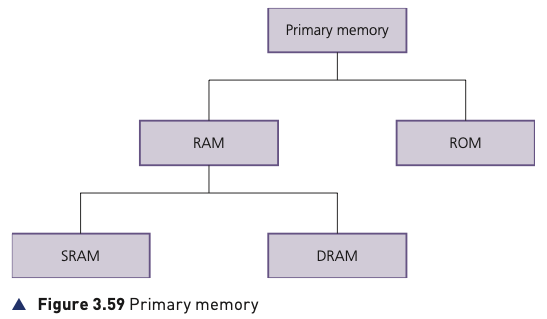
Primary memory is memory the CPU can access directly. In this topic it includes RAM and ROM; cache memory is also directly accessible and is discussed with CPU architecture. Primary memory is used for the data, instructions and services the processor needs while the computer is working.
Random access memory (RAM)
RAM is the computer's temporary working memory. When an application is run, the required program instructions and data are copied from secondary storage into RAM because access is much faster there. Any RAM location can be accessed independently of the location used previously.
- RAM can be read from and written to.
- Its contents can change while the computer is running.
- It stores current data, programs and parts of the operating system.
- RAM is volatile: its contents are lost when power is removed.
- Having more RAM generally reduces the need to keep moving data between RAM and slower secondary storage, improving performance.
DRAM and SRAM
| DRAM | SRAM |
|---|---|
| Uses transistors and capacitors. | Uses flip-flop circuits to hold bits. |
| Capacitor charge must be refreshed repeatedly. | Does not require constant refreshing. |
| Cheaper to manufacture and generally offers greater capacity. | Faster data access but more expensive. |
| Uses less power than SRAM according to the source comparison. | Used where speed is especially important. |
| Commonly used for main memory. | Commonly used for CPU cache. |
In DRAM, a capacitor stores the bit and a transistor acts as a switch that allows circuitry to read or alter it. The capacitor gradually loses charge, so it must be refreshed. SRAM keeps its bit using a flip-flop and therefore does not require that continual refresh cycle.
Read-only memory (ROM)
ROM is permanent, non-volatile primary memory. Its stored contents are intended to be read rather than altered by the user or ordinary programs. It is used for instructions and data that must still exist when the machine has been powered off, including start-up instructions such as the BIOS/bootstrap routines described in the textbook.
| RAM | ROM |
|---|---|
| Temporary | Permanent |
| Volatile | Non-volatile |
| Read/write | Normally read-only for the user/system |
| Stores current programs, data and parts of the OS | Stores start-up instructions and fixed data |
| Increasing capacity can improve working performance | Retains required instructions when power is removed |
RAM and ROM in an embedded device
The textbook's remote-controlled toy-car example shows the distinction clearly. ROM can hold factory settings, start-up routines and fixed rules such as how remote-control buttons map to movement. RAM can hold temporary instructions or routines entered by the user and data received from the remote control while the toy is operating.
Secondary and off-line storage
Secondary storage is not directly addressable by the CPU. It provides non-volatile, long-term storage for the operating system, applications, device drivers and user files such as documents, photographs and music.
Compared with primary memory
Secondary storage usually provides much greater capacity, but its access time is slower than RAM or ROM.
Internal or external
Storage can be fitted inside the computer, such as an internal HDD or SSD, or connected externally/removably for backup and file transfer.
The source groups the technologies used for secondary/off-line storage into magnetic, solid-state and optical storage. The next subtopic explains how each works.
Magnetic, optical and solid-state storage
Magnetic storage — hard disk drives (HDDs)
An HDD stores binary data magnetically on spinning disks called platters. Read/write heads containing electromagnets move across the surfaces to read or change the stored data. A drive can contain several platters, and both sides of a platter can be used.
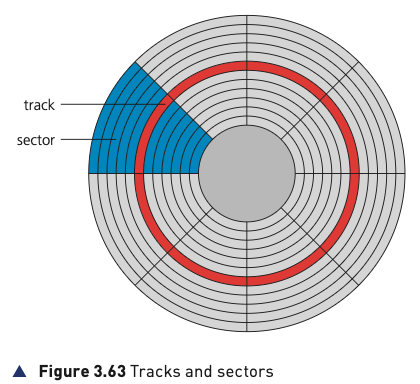
The disk surface is divided into tracks and sectors. A sector stores a fixed amount of data. The head moves directly to the required track/sector, but once there the required part of the rotating disk must pass underneath the head. The delay involved is latency.
Fragmentation
After many files are created, edited and deleted, a file's sectors may become scattered around the disk rather than sitting together. This fragmentation increases head movement and can reduce performance. Defragmentation software reorganises the sectors to reduce the problem.
External/removable HDDs use the same basic magnetic technology and can be connected through USB for backup or file transfer.
Solid-state drives (SSDs)
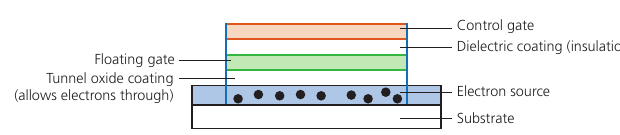
SSDs have no moving parts. The source describes flash storage as controlling electrons in NAND or NOR semiconductor chips. Cells contain a floating gate and a control gate. Trapped charge in the floating gate represents a stored bit, making the device non-volatile.
| Benefits of SSD over HDD | Limitation described in the source |
|---|---|
| No moving parts, so greater mechanical reliability. | Flash cells have a limited number of write/erase cycles — SSD endurance. |
| Lighter and thinner. | Existing flash data is erased before new data is written to the same location. |
| Lower power use and less heat. | High-write applications can place greater demands on endurance. |
| No spin-up delay and much faster data access. | Long-term durability is a factor to consider. |
Memory sticks / flash memory
USB memory sticks use solid-state technology. Their small size and low weight make them convenient for transferring files and keeping small backups. The source also describes a dongle use: software may require files stored on the device before it will run, helping prevent unauthorised use or copying.
Optical storage — CD and DVD
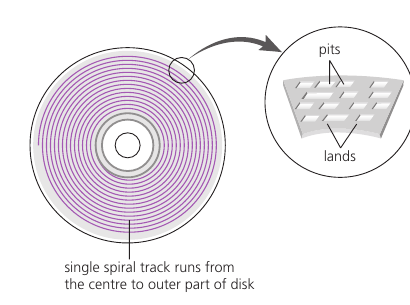
CDs and DVDs store data on a single spiral track using pits and lands. A red laser reads or writes the surface. The disk is also divided into sectors for direct access. Discs marked R are write-once; RW discs can be rewritten.
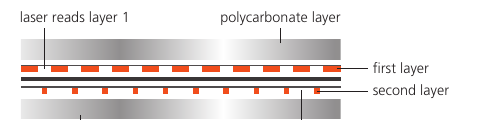
DVDs can use dual-layering. Two recording layers are separated inside the disc and the laser focuses at slightly different depths to read the required layer.
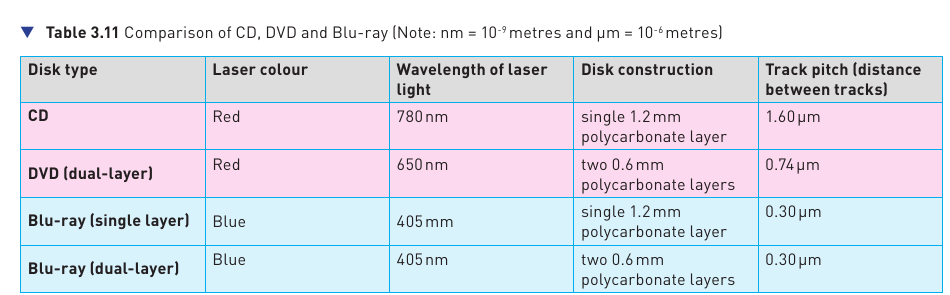
DVDs use a shorter-wavelength laser than CDs, allowing smaller pits and track spacing and therefore more data to be stored on the surface.
Blu-ray
Blu-ray uses a blue laser with a shorter wavelength than the red laser used by DVD. The source explains that smaller pits and lands can therefore be used, increasing capacity. It also notes higher transfer rates, built-in secure encryption, single- and dual-layer forms, and greater interactivity for recorded media.
Virtual memory
When running programs need more RAM than is available, part of an HDD or SSD can be used as extra working space. The textbook describes physical RAM together with this reserved swap space as the basis of virtual memory.
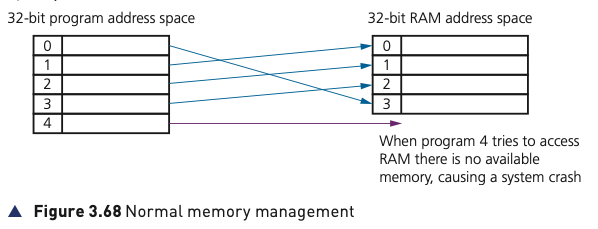
Without virtual memory
If RAM is full and another program needs memory, there is no free RAM address space for the new data. Without another memory-management mechanism, the program cannot be given the space it requires.
With virtual memory
The operating system can move a block of data that is not immediately required from RAM to the HDD/SSD. The newly freed RAM space can then be allocated to another program. A mapping structure keeps track of where each program's data currently resides.
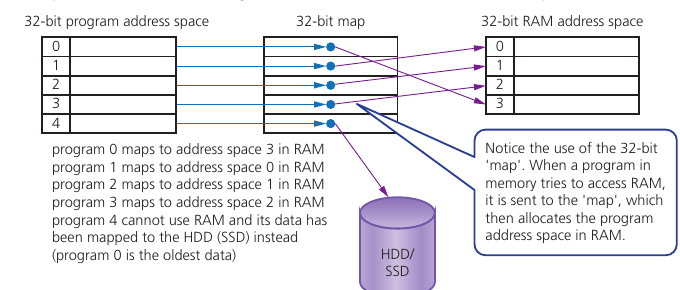
When the waiting program is brought into RAM, older or less immediately required data can be moved out to swap space and the map is updated.
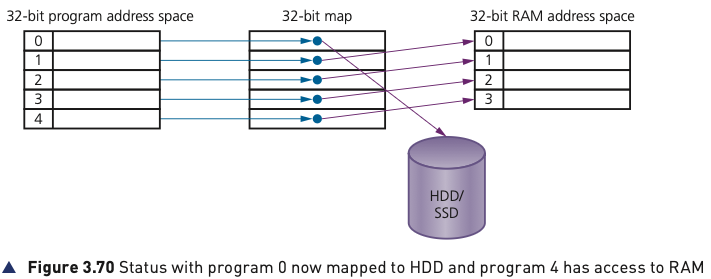
Paging moves fixed-length blocks called pages between RAM and the HDD/SSD. Virtual memory gives the impression that more memory is available than the installed physical RAM alone.
| Benefits | Costs / risks |
|---|---|
| Programs larger than physical RAM can still run. | Secondary storage is much slower than RAM. |
| RAM does not have to hold every part of every program all the time. | Frequent swapping can seriously reduce performance. |
| Can reduce the immediate need to install additional RAM. | Heavy HDD swapping causes disk thrashing. |
Disk thrashing and the thrash point
When the system spends more and more time moving pages between RAM and an HDD than executing instructions, disk activity becomes extremely high. This is thrashing. If it becomes so severe that useful processing effectively stops, the system has reached the thrash point.
The source suggests reducing the problem by installing more RAM, running fewer programs at the same time, reducing swap-file size, or using an SSD rather than an HDD so page transfers do not require mechanical head movement.
Cloud storage
Cloud storage keeps data on remote servers managed in a hosting environment rather than only on the user's local device. Copies can be stored on more than one server so data remains available if a server needs maintenance or fails; this duplication is called data redundancy.
Public, private and hybrid cloud
Public cloud
The client and the cloud-storage provider are separate organisations.
Private cloud
Storage is provided in a dedicated environment behind the organisation's firewall; the storage system and organisation operate as one entity.
Hybrid cloud
A combination: more sensitive information can stay in the private environment while less sensitive data uses public cloud services.
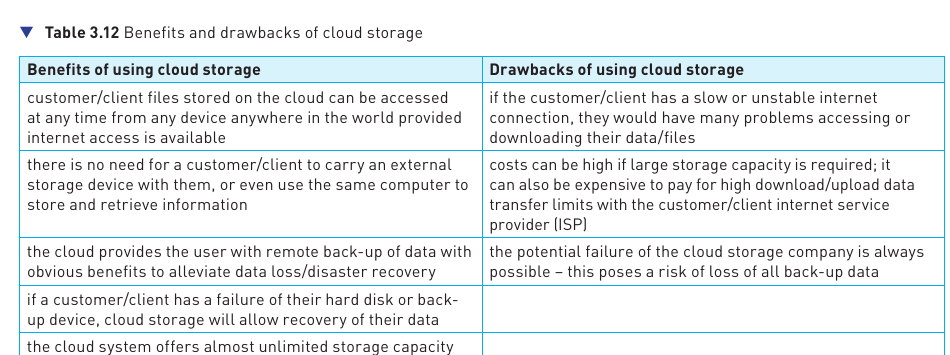
Benefits
- Files can be accessed from different devices and locations when internet access is available.
- The user does not need to carry the same physical storage device everywhere.
- Cloud copies can provide remote backup and support disaster recovery.
- If a local disk or backup device fails, a cloud copy may allow recovery.
- Storage capacity can be expanded without installing more local drives.
Drawbacks and security questions
- A slow or unreliable connection makes access and downloads difficult.
- Large storage allocations and high data-transfer usage may add cost.
- The user depends on the continued operation of the cloud provider.
- Organisations give part of the control over physical security to the provider and need to consider building security, disaster/power protection and staff access controls.
- Account compromise, hacking or other attacks can expose, corrupt or delete stored information.
The textbook gives historical examples to show why organisations assess these risks carefully, including a hypervisor security issue that forced cloud reboots, a provider losing data during a backup operation, compromised private photo accounts, and a 2016 breach involving Mexican voter-registration data. The purpose of these examples is to show that off-site storage still requires strong security and reliable backup procedures.